

 Home
Home
Install Bugzilla on CentOS/Rocky OS/Windows

Install Bugzilla on CentOS 8/Rocky
I. Install Packages
Ref:
Step 1: Install EPEL packages:
Ref: https://docs.fedoraproject.org/en-US/epel/
$ dnf config-manager --set-enabled crb
$ dnf install epel-release
Step 2: Install bugzilla required packages:
$ dnf install git httpd httpd-devel mariadb-devel gcc mariadb-server mod_perl mod_perl-devel 'perl(autodie)' 'perl(CGI)' 'perl(Date::Format)' 'perl(DateTime)' 'perl(DateTime::TimeZone)' 'perl(DBI)' 'perl(DBD::mysql)' 'perl(DBIx::Connector)' 'perl(Digest::SHA)' 'perl(Email::MIME)' 'perl(Email::Sender)' 'perl(fields)' 'perl(JSON::XS)' 'perl(List::MoreUtils)' 'perl(Math::Random::ISAAC)' 'perl(Memoize)' 'perl(Safe)' 'perl(Template)' 'perl(URI)'
$ dnf install gd-devel graphviz patchutils 'perl(Apache2::SizeLimit)' 'perl(Authen::Radius)' 'perl(Authen::SASL)' 'perl(Cache::Memcached)' 'perl(Encode)' 'perl(Encode::Detect)' 'perl(File::Copy::Recursive)' 'perl(File::MimeInfo::Magic)' 'perl(File::Which)' 'perl(GD)' 'perl(GD::Graph)' 'perl(GD::Text)' 'perl(HTML::Parser)' 'perl(HTML::Scrubber)' 'perl(IO::Scalar)' 'perl(JSON::RPC)' 'perl(LWP::UserAgent)' 'perl(MIME::Parser)' 'perl(mod_perl2)' 'perl(Net::LDAP)' 'perl(Net::SMTP::SSL)' 'perl(SOAP::Lite)' 'perl(Test::Taint)' 'perl(XMLRPC::Lite)' 'perl(XML::Twig)'
Step 3: Download and install bugzilla package
$ cd /var/www/html/
$ git clone --branch release-X.X-stable https://github.com/bugzilla/bugzilla
Ex: X.X is version
Step 4: Install Perl required Package
$ cd /var/www/html/bugzilla/ && ./install-module.pl Chart::Lines Daemon::Generic Email::Reply HTML::FormatText::WithLinks PatchReader Template::Plugin::GD::Image TheSchwartz
$ ./install-module.pl --all // install all perl module
$./checksetup.pl --check-modules // check require module
Some problems when install:
Problems #1: Can't locate CPAN.pm in @INC
Solution:
$ yum -y install perl-CPAN
==============
Problems #2: No POSTGRES_HOME defined, cannot find automatically
No 'Makefile' created TURNSTEP/DBD-Pg-3.18.0.tar.gz
/usr/bin/perl Makefile.PL LIB="/var/www/html/bugzilla/lib" INSTALLMAN1DIR="/var/www/html/bugzilla/lib/man/man1" INSTALLMAN3DIR="/var/www/html/bugzilla/lib/man/man3" INSTALLBIN="/var/www/html/bugzilla/lib/bin" INSTALLSCRIPT="/var/www/html/bugzilla/lib/bin" INSTALLDIRS=perl -- NOT OK
Solution:
$ yum install postgresql-devel
II. Config Apache
# Edit config file
$ /etc/httpd/conf/httpd.conf
and follow Bugzilla Guide
III. Install Mariab DB
Ref: https://bugzilla.readthedocs.io/en/latest/installing/mysql.html#mysql
How to Install Mariab DB : https://www.digitalocean.com/community/tutorials/how-to-install-mariadb-on-centos-7
$mysql -uroot -p
-- Create DB
CREATE DATABASE IF NOT EXISTS bugs CHARACTER SET = ‘utf8’;

Change MariaDB Configuration:
// Allow Large Attachments and Many Comments
$ /etc/my.cnf.d/mariadb-server.cnf
[mysqld]
# Allow packets up to 16M
max_allowed_packet=16M

[mysqld]
# Allow small words in full-text indexes
ft_min_word_len=2


III. Setup Buzilla Config
$ ./checksetup.pl
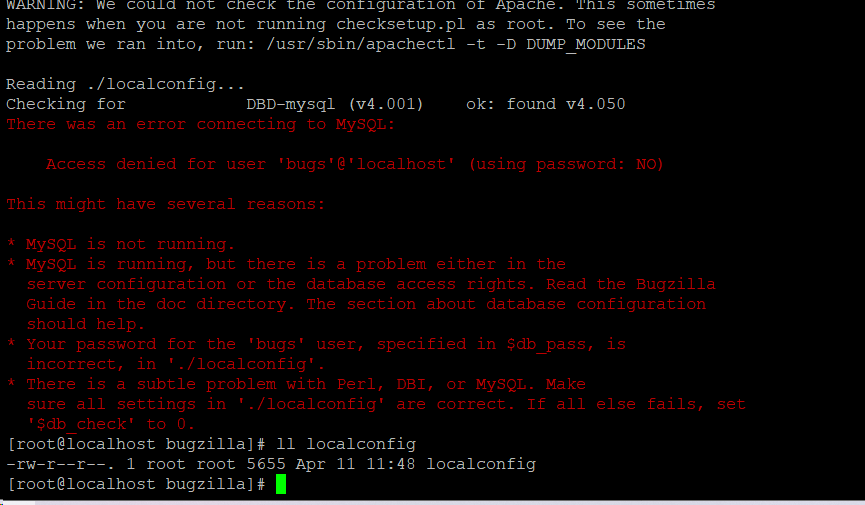
// Run setup again
$ ./checksetup.pl
// Enter your administrator information

IV - Test Bugzilla
$ cd /var/www/html/bugzilla
$ ./testserver.pl http://localhost/
or access bugzilla front page in web browser.
Note: Must allow port 80 in firewall.

V - Bugzilla Basic Setup
4.1 - Access Bugzilla via : http://<your_ip>/bugzilla/
4.2 - Config Email
Administrator > Parameter > Email menu :

The domain name of the server (Parameter: smtpserver)
The username and password to use (Parameters: smtp_username and smtp_password)
Whether the server uses SSL (Parameter: smtp_ssl)
The address you should be sending mail ‘From’ (Parameter: mailfrom)
2. Strawberry Perl
Step 1 — Install Strawberry Perl
- Download from https://strawberryperl.com/
- Install to
C:\Strawberry(avoid paths with spaces) - Log out and back in to apply PATH changes
- Verify: open Command Prompt and run
perl -v
Step 2 — Install PostgreSQL
- Download from https://www.postgresql.org/download/windows/
- Run the installer — note the superuser password you set
- Default port is 5432 — leave it as-is
- After installation, open pgAdmin or the psql shell and create the Bugzilla database:
CREATE USER bugs WITH PASSWORD 'your_password';
CREATE DATABASE bugs OWNER bugs ENCODING 'UTF8';
GRANT ALL PRIVILEGES ON DATABASE bugs TO bugs;
Step 3 — Enable IIS with CGI
- Go to Control Panel → Programs → Turn Windows features on or off
- Expand Internet Information Services → World Wide Web Services → Application Development Features
- Check ✅ CGI, then click OK
- Open IIS Manager by running
inetmgr
Step 4 — Download Bugzilla
- Go to https://www.bugzilla.org/download/ and get the latest 5.2.x release
- Extract to
C:\Bugzilla
Step 5 — Install Perl Modules
Open Command Prompt as Administrator, go to C:\Bugzilla, and run:
perl install-module.pl --all
Step 6 — Configure localconfig
Run checksetup.pl once to generate the config file:
cd C:\Bugzilla
perl checksetup.pl
It will create localconfig. Open it and set your PostgreSQL details:
$db_driver = 'Pg'; # PostgreSQL driver
$db_host = 'localhost';
$db_port = '5432';
$db_name = 'bugs';
$db_user = 'bugs';
$db_pass = 'your_password';
Step 7 — Run checksetup.pl to Build the Database
Run it again — this time it creates all tables and prompts for an admin account:
perl checksetup.pl
Step 8 — Configure IIS
8a — Create the Application
- Open IIS Manager (
inetmgr) - Expand Sites → Default Web Site
- Right-click → Add Application
- Alias:
bugzilla - Physical Path:
C:\Bugzilla
- Alias:
- Click OK
8b — Set Default Document
- Click the
bugzillaapplication - Double-click Default Document
- Click Add → enter
index.cgi - Remove all other default documents for this application
8c — Add CGI Handler Mappings
Click the bugzilla application → double-click Handler Mappings → Add Script Map (do this twice):
Mapping 1 — .cgi files:
| Field | Value |
|---|---|
| Request path | *.cgi |
| Executable | C:\Strawberry\perl\bin\perl.exe -T "%s" %s |
| Name | Perl CGI |
Click Yes when asked to allow the ISAPI extension.
Mapping 2 — remove any existing .pl mapping (if present from a prior ActivePerl install), as .pl files should not be served directly via IIS in Bugzilla.
8d — Set Application Pool
- Go to Application Pools
- Find the pool used by your Bugzilla app
- Set .NET CLR Version to No Managed Code
- Set Identity to a user with read access to
C:\Bugzilla
Comments[ 0 ]
Post a Comment